
A website can look perfectly respectable on a desktop and still come apart in the palm of someone’s hand.
The menu slips over the headline. A button sits just beyond a thumb’s reach. The visitor fills in a form, taps submit, and—nothing. They wait a second, perhaps two. Then the page disappears behind the next notification, and your chance to help them is gone with it.
Quick answer: A phone visitor can contribute to your website income when the page is readable, the next step is clear, and the visitor can complete and confirm the action.
Test from the page a new visitor lands on through the signup, affiliate referral, service inquiry, or checkout. A passing test shows that the route works; it cannot promise traffic, sales, or income.
First, what does “working on mobile” really mean?
A page fitting inside a phone screen is a start. It is not the whole test. The visitor has to make it through a chain of small handoffs: page to offer, offer to action, action to confirmation. If any handoff breaks, the route breaks with it.
| Part of the journey | The question to answer |
|---|---|
| The page | Can a visitor read it and find their way around on a phone? |
| The action | Can they complete the signup, referral, inquiry, or purchase? |
| The result | Does the right system record what happened? |
A page might pass the first check and fail the other two. Its design may look polished, yet the form never submits. The affiliate link may open, but the destination is too difficult to use on a small screen.
And there’s a difference between a website that works and a website that earns. A successful test can show you that a visitor can take the intended action. It cannot show that enough people will arrive, that they will want the offer, or that a commission will follow. Those are separate questions, and keeping them separate saves a lot of needless guessing.
Recommended reading: How to Make Money With a Website Without Blogging: Build a Simple One-Offer Funnel That Can Sell 24/7
Follow the visitor’s whole journey, from the first click
Set aside your desktop view for a few minutes. Pick up a real phone and step into the role of someone who has never seen your site. No dashboard. No bookmarked homepage. Just the page, the screen, and the next decision.
Start on the page a new visitor would land on
Search visitors often arrive directly on an article. Open one of those pages on your phone rather than starting at the homepage. If visitors usually come from an email, social post, or ad, try that route as well.
Look at what appears before you scroll. Does the page load where you expect? Is the headline visible? Can you tell what the page is about? Notice anything that appears on top of the content: a banner, cookie notice, sticky header, or pop-up.
A first-time visitor doesn’t yet know your site’s habits. Every extra layer asks them to do a little more work before they’ve found a reason to stay.
Recommended reading: How to Create a Mobile-Friendly Niche Website That Can Earn Income: A Beginner’s Step-by-Step Guide
Give the screen—and your thumb—a proper test
Read the page at its natural size. Scroll through it. Open the menu. Try the buttons.
Watch for the small annoyances that become big obstacles on a phone: text you have to enlarge, a picture wider than the screen, a menu that closes too quickly, buttons pressed close together, or a fixed bar that hides what you’re trying to read.
Ask yourself:
- Can I read the page without pinching to zoom?
- Can I open the menu and find the page I want?
- Do images fit, or do they push the page sideways?
- Does anything cover the headline or main button?
- Can I tell what to do next without searching for it?
The page doesn’t have to win a design award. It needs to feel easy enough that the visitor can keep their attention on the answer.
Tap the main action and follow wherever it leads
Every page needs a clear next step. A reader might download a beginner’s guide, visit an affiliate partner, request a quote, or buy something. Find the action that matters on this page and tap it.
Does the button respond? Does the wording match what happens next? Does it take you to the expected form or offer? Open that next page and keep going. The mobile experience has to hold together there too.
An affiliate link deserves the same practical check. Confirm that it reaches the right product or service page and that the destination is usable on a phone. Don’t make a purchase through your own link to test commission tracking or create a self-referral. If you need to test a transaction, use the program’s approved method.
Complete an email signup, not just the form
A signup box can look fine and still fail the moment a visitor tries to use it. Test it with an email address you control. Fill in the fields, tap submit, and wait for the next step.
Check that:
- The labels and instructions are easy to read.
- The fields respond when you tap them.
- The submit button gives a clear response.
- The confirmation message tells you what happens next.
- The promised email arrives and its link opens correctly.
The signup is a bridge to a future conversation, not income by itself. That conversation should continue to be useful. A recommendation belongs when it matches what the subscriber needs, not merely because an email has been added to the list.
Recommended guide: How to Make Money With an Email List Without Spamming Your Subscribers: 9 Ethical Monetization Strategies
Test the path that actually brings in revenue
Different websites earn in different ways. Follow the route that fits yours all the way to its natural endpoint.
| Website income path | What to test on your phone |
|---|---|
| Affiliate referral | The tracked link opens the intended offer and the merchant’s page works on mobile. |
| Your own product | The details, price, cart, payment, confirmation, and delivery information are clear. |
| Service or consulting | The inquiry form works, the fields make sense, and the confirmation explains what happens next. |
| Lead generation | The offer is understandable, the form accepts accurate details, and the visitor knows who will follow up. |
| Advertising | Ads don’t cover the article, block navigation, or make accidental taps likely. Don’t click your own ads to test them. |
If your checkout platform has a test mode, use it. You can check the route without creating a live order. If it doesn’t, follow the platform’s testing instructions and stop short of submitting a fake purchase.
Pay attention to the details a visitor needs to make a decision. Can they understand the full price and payment options? Does the page explain what they receive or when they’ll hear back? A person who reaches a payment page is still allowed to have questions.
Look for proof that the action was recorded
Now check the other side of the screen. Did the signup appear in your email platform? Did the analytics system record the event, if you’ve configured one? Does the affiliate dashboard show a click after its normal reporting delay? Did a test inquiry arrive?
The numbers in these systems describe different moments:
- A page view means the page loaded.
- A button tap means the visitor showed interest in the next step.
- A signup means the form was completed.
- An affiliate click means the referral link was followed.
- A commission means a qualifying action was credited under the program’s terms.
One number cannot stand in for another. A click can be encouraging without becoming a sale; a signup can be useful without producing income yet. Knowing exactly which step you’re measuring makes the next decision clearer.
Turn your phone test into a simple scorecard
Don’t trust your memory to hold every detail. Write down what you tried and what happened.
| Test | Pass looks like | If it fails, look at |
|---|---|---|
| Page opens on phone | Main content appears and is readable. | Theme, scripts, blocked resources, or page loading. |
| Menu works | It opens and its links go where expected. | Overlapping header, broken menu, or tap area. |
| Main action works | The button opens the intended form or destination. | Link, overlay, button setting, or page script. |
| Signup completes | The form submits and shows confirmation. | Required fields, integration, validation, or connection. |
| Follow-up arrives | The expected message or confirmation is delivered. | Automation, delivery settings, or confirmation link. |
| Revenue step works | The offer, checkout, or inquiry can be completed. | Destination layout, payment route, or form. |
| Tracking appears | The right platform records the test action. | Event setup, consent settings, or reporting delay. |
Mark each line Pass, Fix, or Not applicable. Start with anything that blocks the visitor from taking the main action. The spacing of a decorative image can wait if the signup button isn’t working.
Which tools can help you test a website on a phone?
A real phone gives you the most direct view of the experience. Browser and Google tools can help explain what you’re seeing.
- Chrome DevTools device emulation lets you inspect a page at different screen sizes. It is helpful for layout checks, but it can’t fully replace a test on a physical phone.
- Lighthouse checks areas such as performance and mobile usability. Google recommends it for testing how pages work across devices. Google retired the Mobile-Friendly Test tool in 2023, so older guides that still rely on it need an update. See Google’s guide to getting information on Search and its page-experience guidance. developers.google.com
- PageSpeed Insights offers diagnostics for a specific page. Use it to spot performance issues, then return to the phone and see how those issues affect the real journey.
- Google Search Console’s Core Web Vitals report shows field data for pages when enough real-world data is available. Google’s current “good” targets are LCP under 2.5 seconds, INP under 200 milliseconds, and CLS below 0.1. They measure loading, responsiveness, and visual stability—not whether your offer will convert. See Google’s Core Web Vitals documentation. developers.google.com
You don’t need a paid suite of tools to begin. Your phone, a browser’s responsive view, and the reports already available for your site can reveal many of the problems that interrupt a visitor.
The route works. Why isn’t the website earning yet?
This is the point where it’s easy to blame the whole website. Resist that for a moment. A successful mobile test answers one question: can a visitor complete the route? It doesn’t answer whether enough of the right people arrive or whether the offer is right for them.
| What you see | What it may suggest | What to check next |
|---|---|---|
| Few relevant visitors arrive | You may have a reach or visibility problem. | Search impressions, queries, traffic sources, and landing pages. |
| Visitors arrive but don’t tap the main action | The offer may be unclear, misplaced, or mismatched to the page. | Headline, button wording, trust details, and reader intent. |
| Visitors tap but don’t complete the form | A technical obstacle or unanswered concern may stop them. | Form errors, required fields, privacy explanation, and layout. |
| Affiliate clicks appear but no sale does | Clicks may not become qualifying purchases; reporting may also be delayed. | Program terms, destination, tracking window, and offer fit. |
| Signups happen but sales do not | The follow-up may need more time, relevance, or trust. | The promised resource, email sequence, and recommendation fit. |
A handful of visits can hint at a problem, but they don’t tell the whole story. Note what failed, make a clear change, and repeat the same test. The point isn’t to collect a perfect score. It’s to find the moment where the visitor’s path becomes harder than it needs to be.
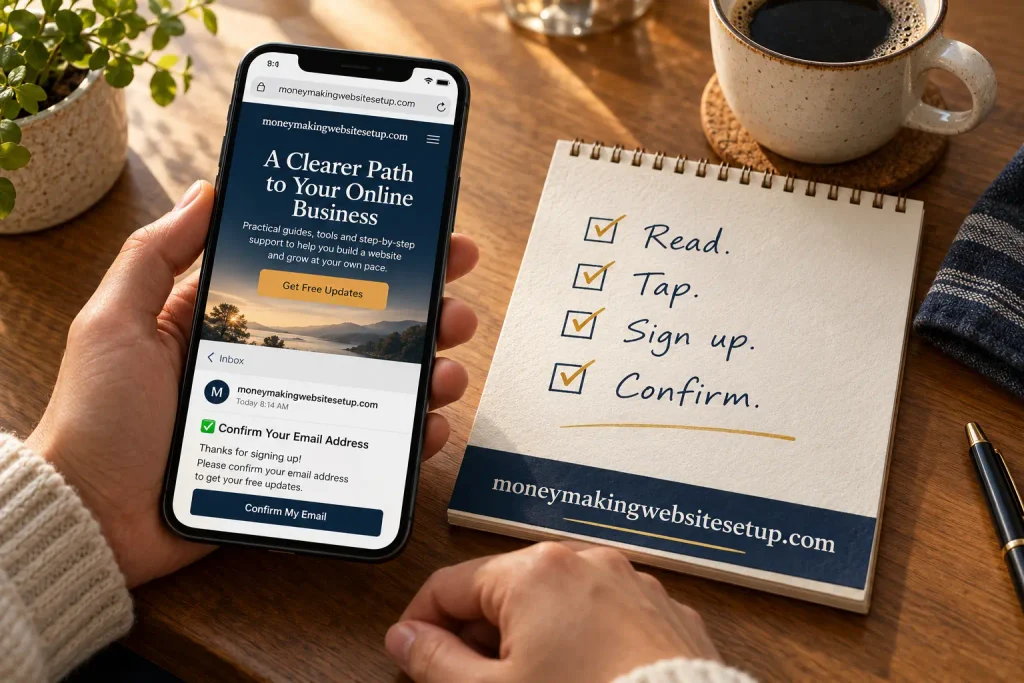
A smoother mobile experience removes friction. It can’t create demand for an offer no one wants. When the route works, turn your attention to the reader’s need, the page’s promise, and whether the two belong together.
Questions people ask while testing a money-making website on mobile
Can I test my website on my phone if I don’t have a developer?
Yes. Open the page on your phone and act like a new visitor: read it, open the menu, tap the main button, submit a test signup, and check the confirmation. Lighthouse and PageSpeed Insights can help identify additional problems. If a key action fails and you can’t see why, that’s a useful point to bring in technical help.
How can I test checkout without placing an order?
Look for a test or sandbox mode in your store or payment platform. It lets you walk through checkout without creating a live order. If the platform doesn’t offer one, follow its official instructions and check the page up to the payment step rather than submitting a fake transaction.
How do I know whether a phone visitor actually made me money?
Check the system that records the transaction: your store or payment account for a sale, your affiliate dashboard for a credited commission, or your service records for a paid client. Analytics can show what steps visitors took, but a page view or link click alone isn’t income.
Why does my website behave differently on a phone?
The mobile layout may use different menus, forms, or scripts. A smaller screen can expose problems that aren’t visible on a desktop: overlapping buttons, overflowing images, or a pop-up that fills the page. Compare the problem page on a real phone and in a browser’s responsive view, then repeat the action that failed.
If my site passes a mobile test, will Google rank it higher?
A passing test does not guarantee a higher position. Google considers Core Web Vitals as part of the page-experience picture, alongside other signals. Use the tools to improve the visit and uncover technical trouble; don’t treat a score as a ranking promise. See Google’s page-experience guidance. developers.google.com
Products / Tools / Resources
- A smartphone: Test the experience on a real device, not just a desktop preview.
- Chrome DevTools: Check how your page behaves at different screen widths.
- Lighthouse: Review mobile usability and performance issues.
- PageSpeed Insights: Get diagnostics for an individual page.
- Google Search Console: Review search performance and available Core Web Vitals field data.
- Your email, affiliate, store, or service dashboard: Confirm whether the action you tested was recorded.
- Free 24-Hour Money-Making Website Blueprint: If you’re still setting up your site, use the blueprint to plan the core pages, content, and next steps before adding more tools or offers.